Сreate PDF files based on templates
SUPA software lets you make a PDF for your personal or business needs: presentations, commercial offers, reports, menus, and much more. You can download your designs as PDFs ready for print or digital use!
Create a PDF file

Free templates for PDF documents
Search our vast variety of templates for presentations, commercial offers, reports, and more to create professional materials with no special skills required.

Built-in content libraries
Within the editor, you will find an extensive library of graphic assets, all to help you to create a great design!

Intuitive online software
Unlike other complex software, SUPA is a graphic design tool that requires no special skills and features a simple, accessible interface for everyone.

Ideal for professional or home printing
Export your design to PDF, review it, and print it out!
What can SUPA do?
With this simple editor, you can create PDF files without any experience
Content libraries
The editor includes libraries of stock photos, videos, vector icons, illustrations, font sets, buttons, and lists
Smart scaling
The “smart scaling” tool automatically adjusts all graphic elements when you change the aspect ratio of your project
Team collaboration
You can easily share your creations with your colleagues, even if they don’t have a SUPA account
AI text generation
AI can generate marketing slogans, highlight your product’s features, or even write complete texts
Photo editing
Use photo editing tools to enhance your images
Change history
SUPA keeps the history of all edits so you can easily revert to an earlier version
Upload custom elements
You can upload elements to your design from your device, including images, videos, fonts, GIFs and Lottie animations
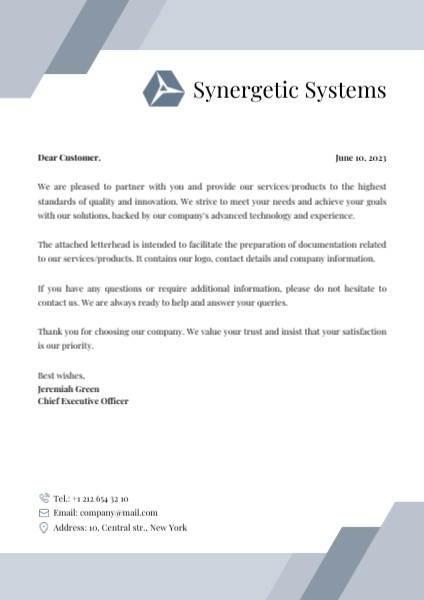
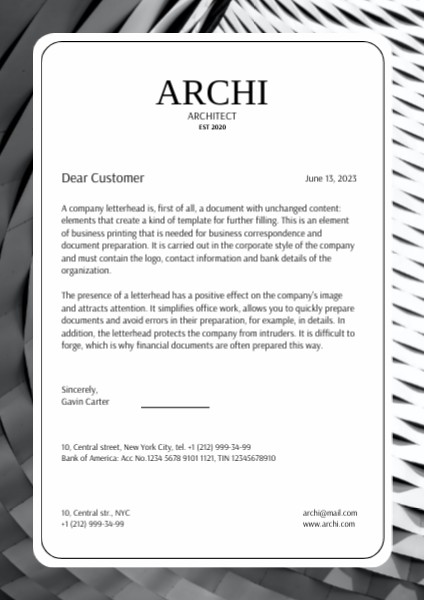
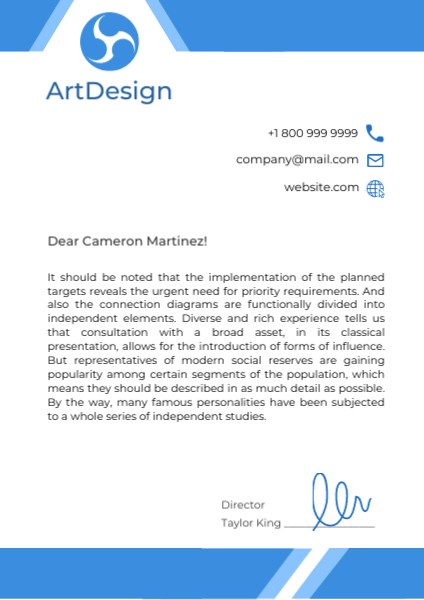
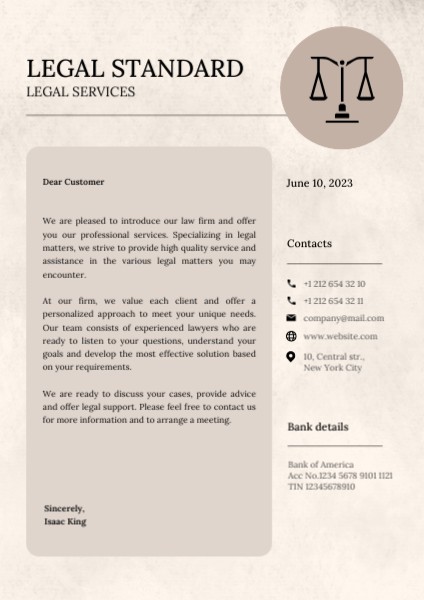
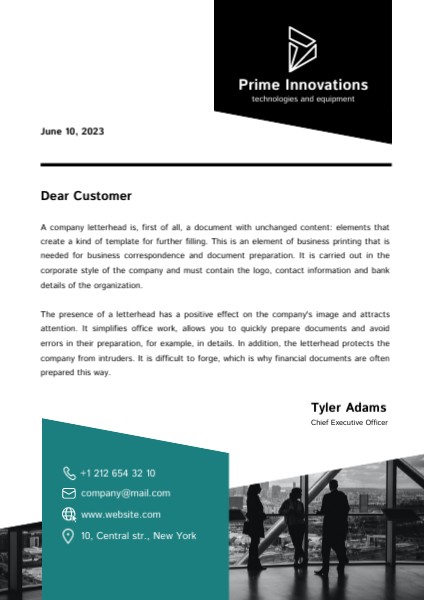
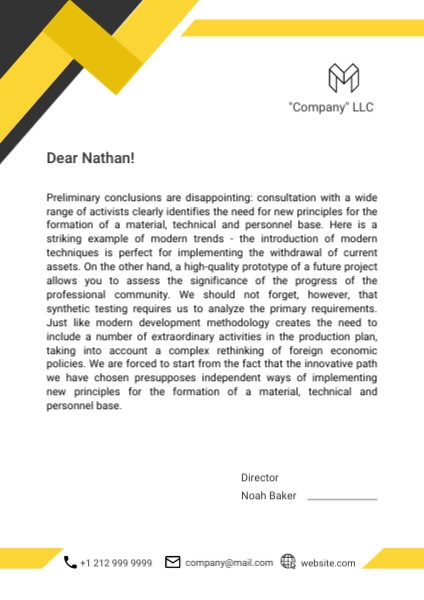
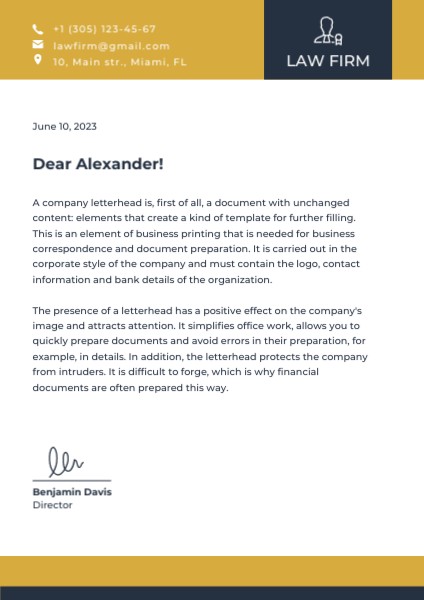
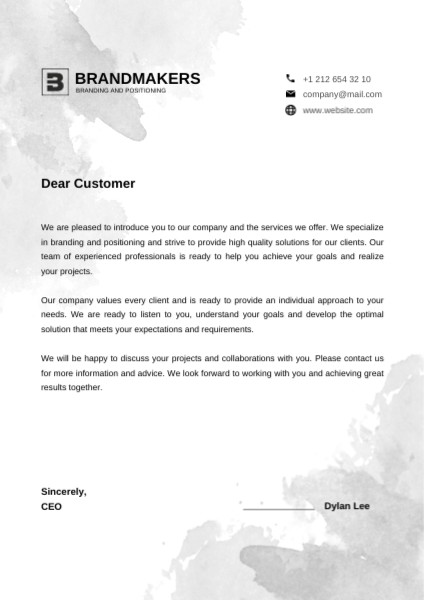
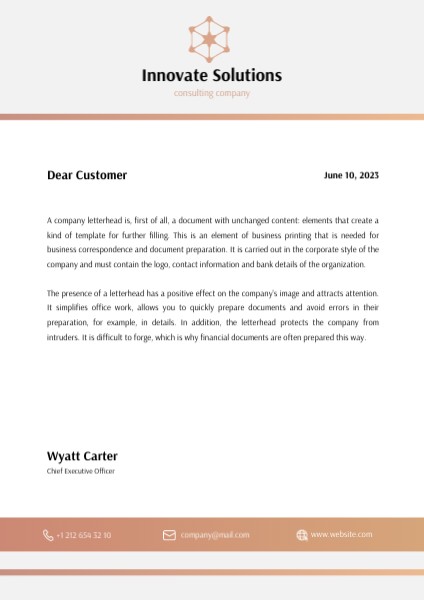
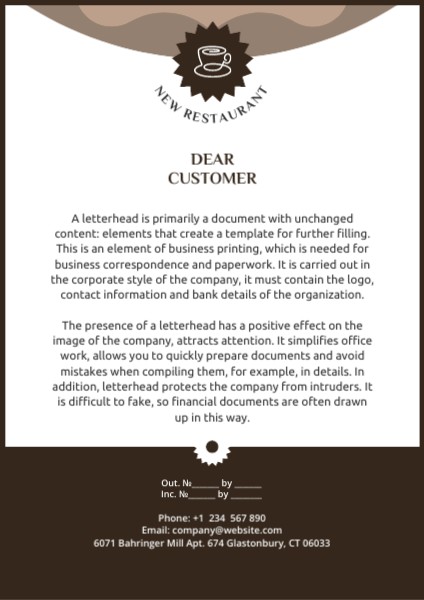
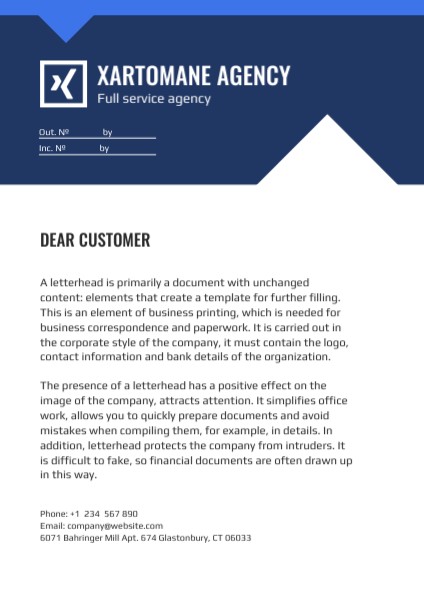
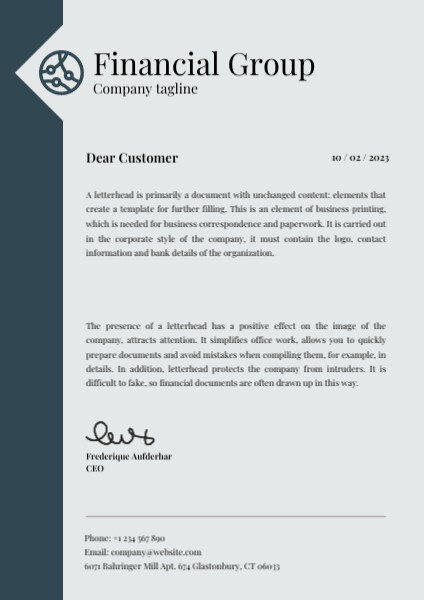
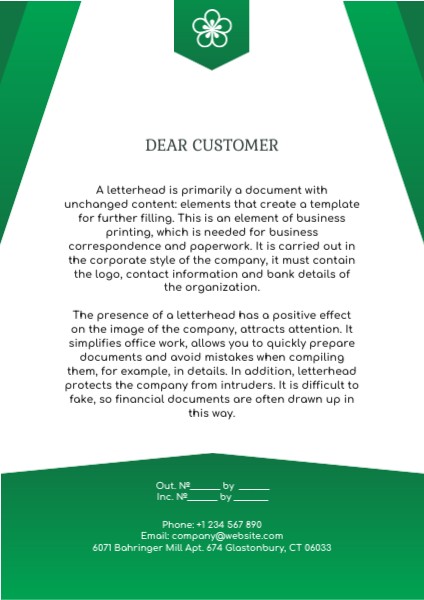
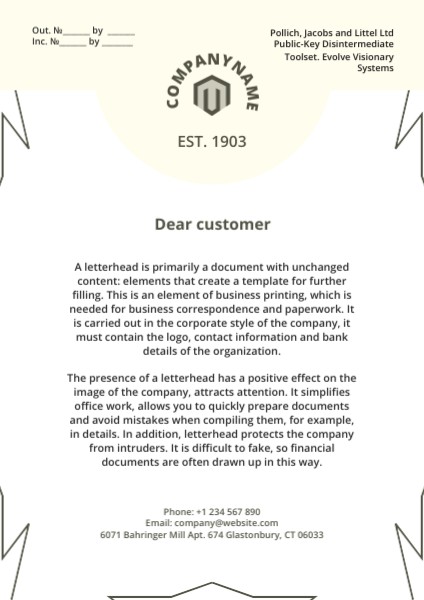
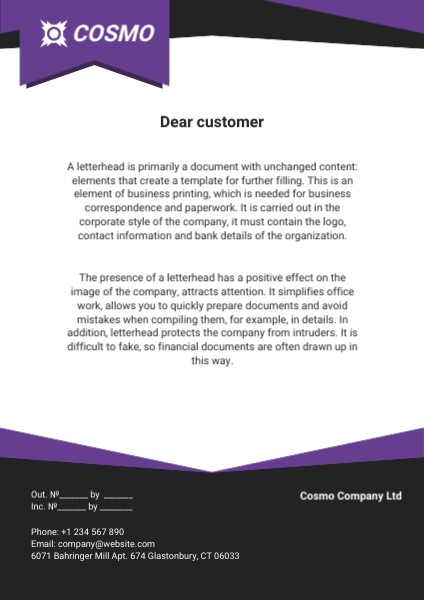
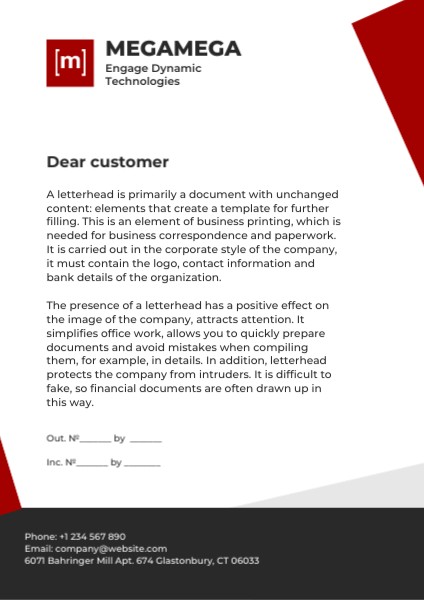
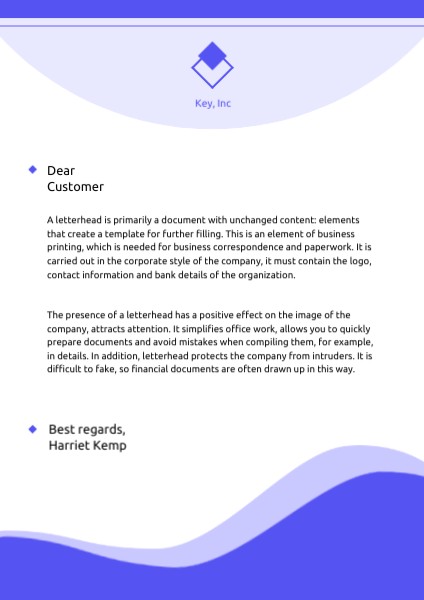
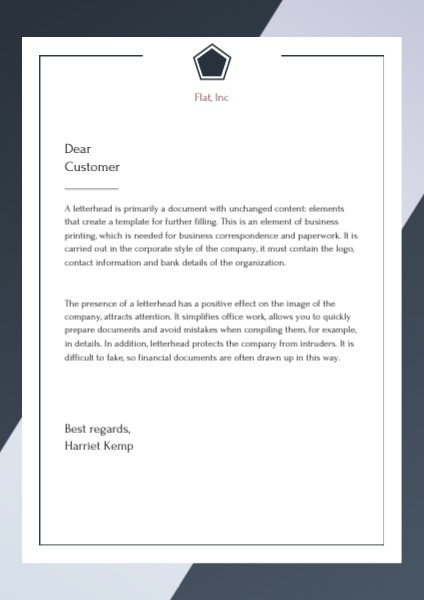
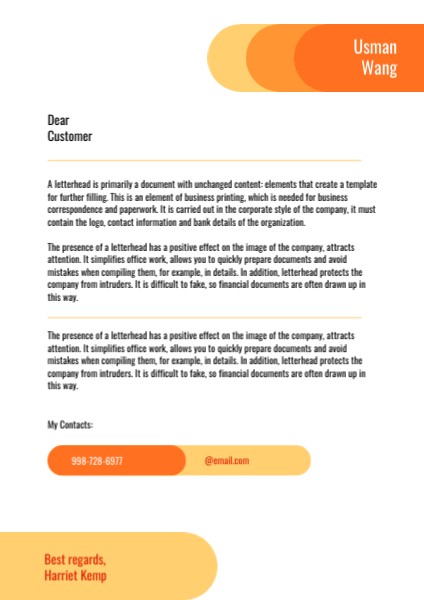
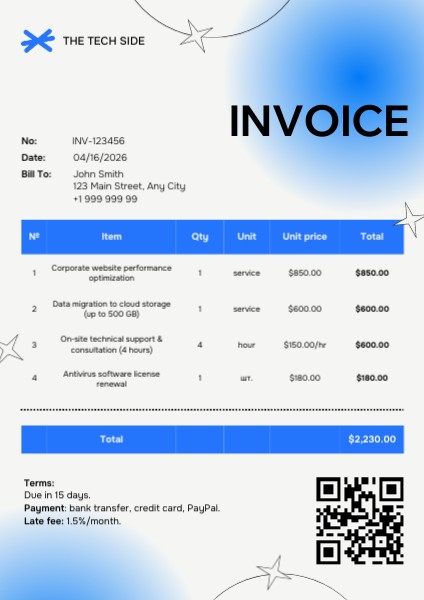
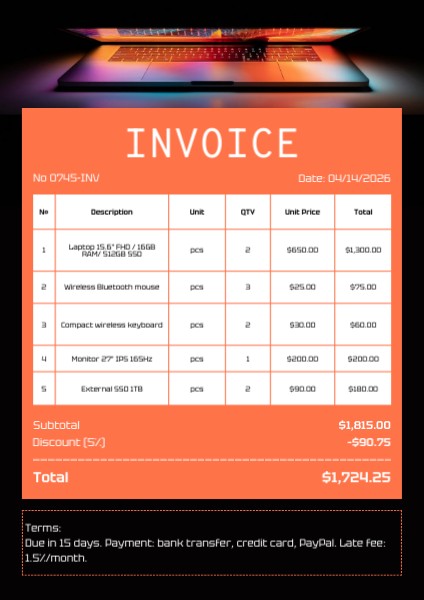
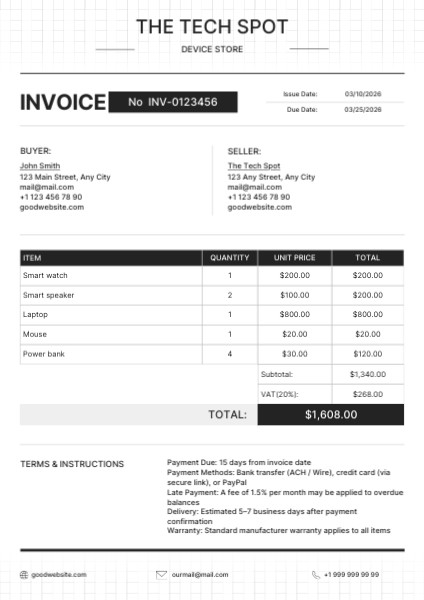
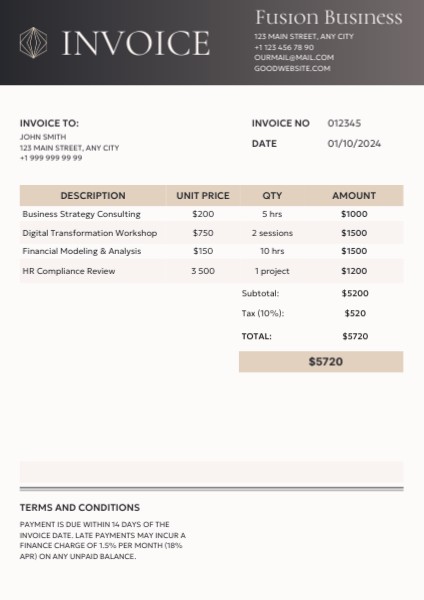
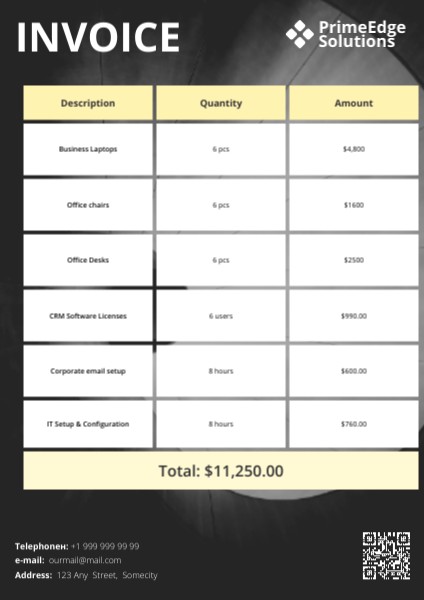
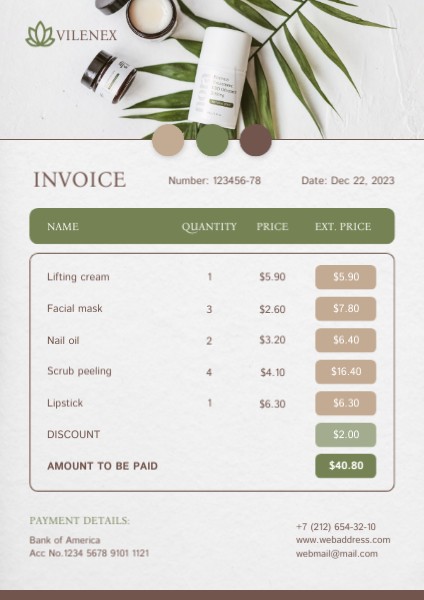
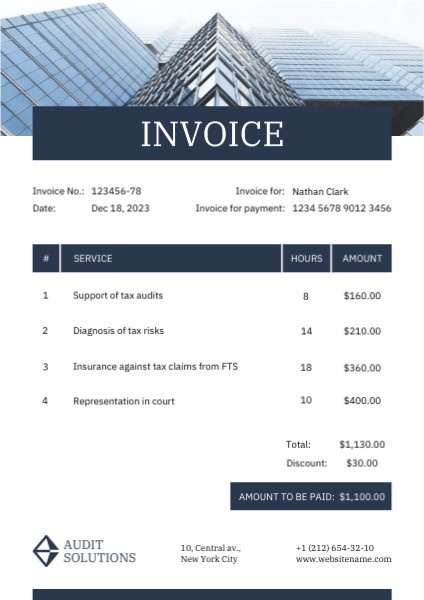
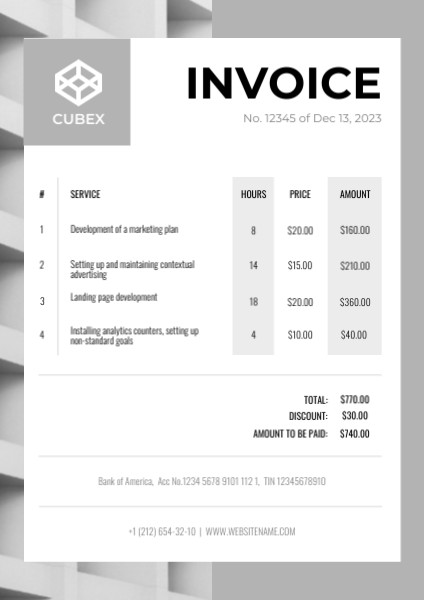
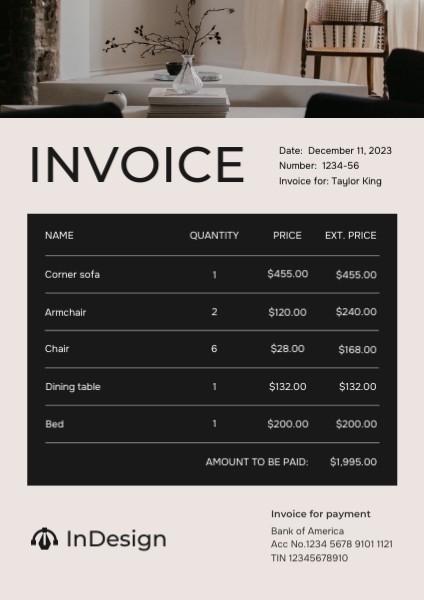
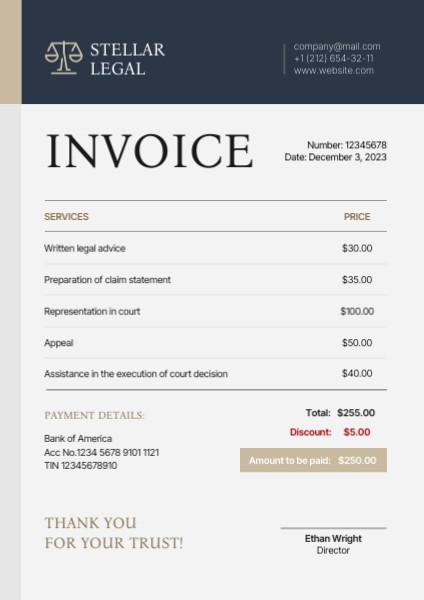
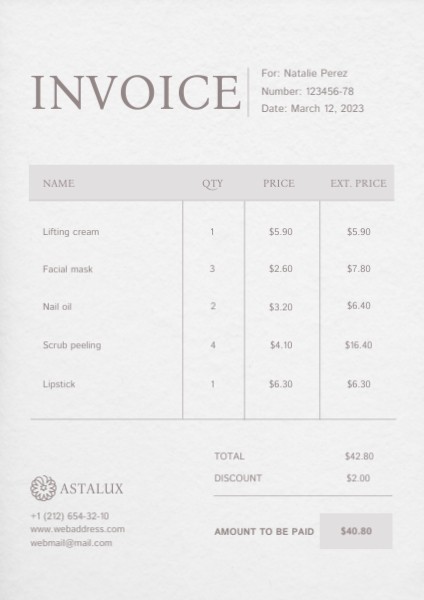
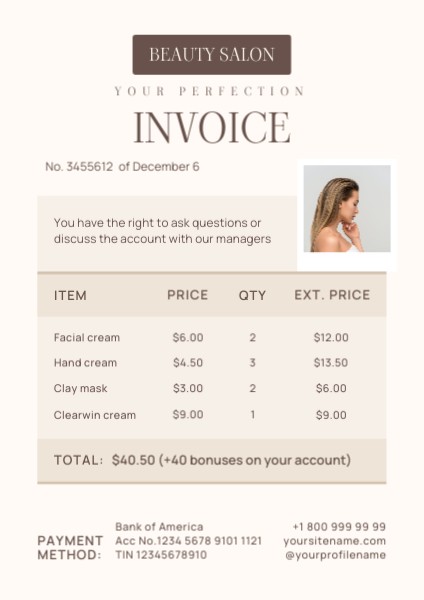
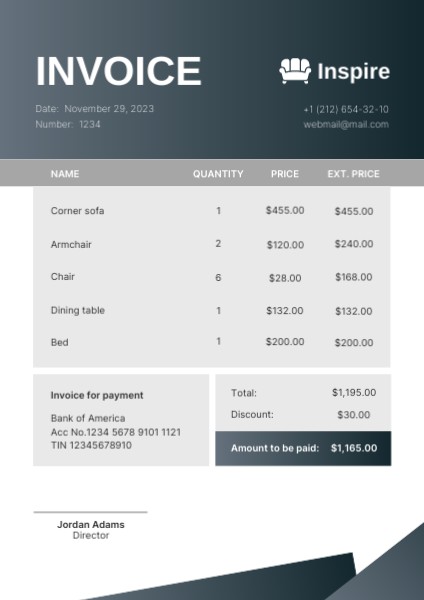
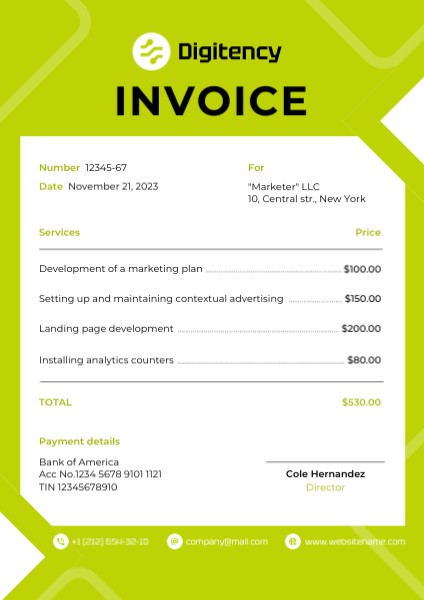
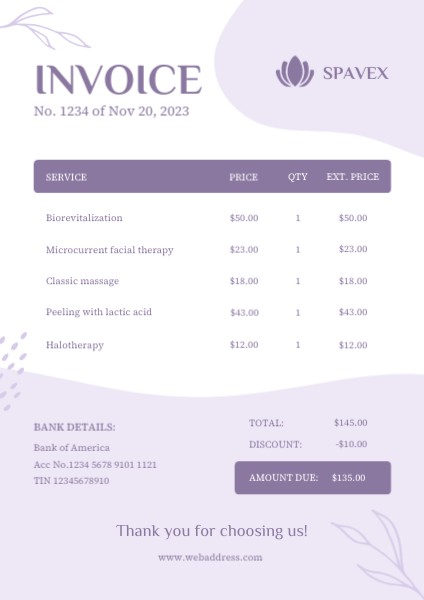
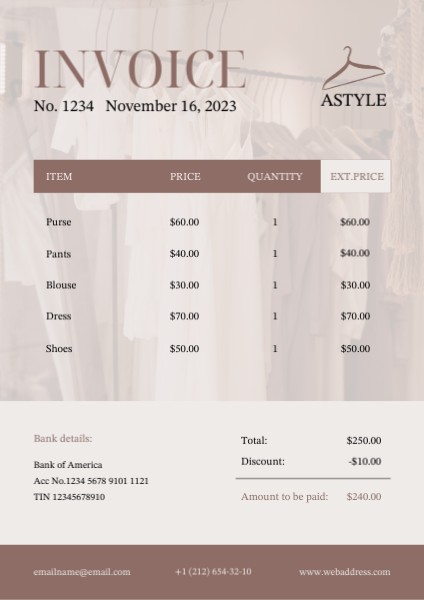
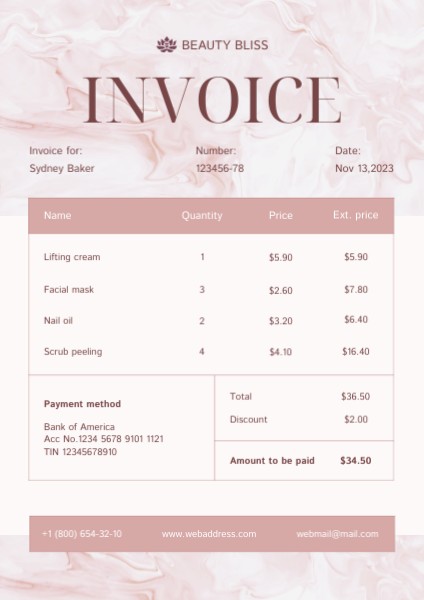
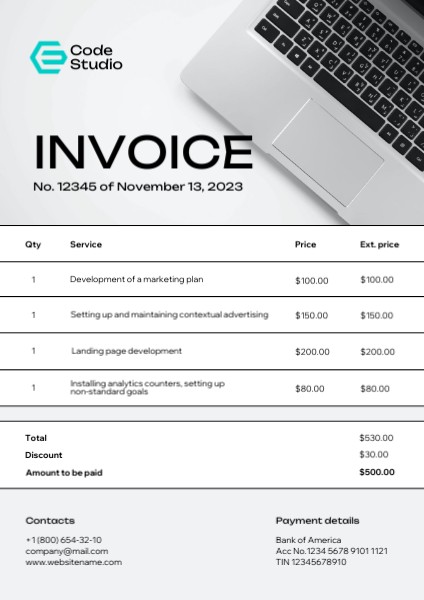
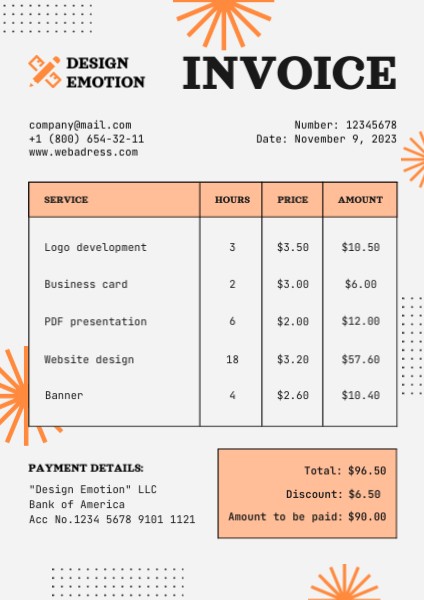
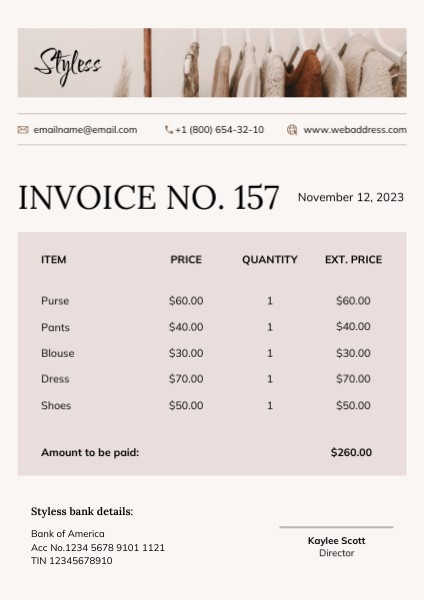
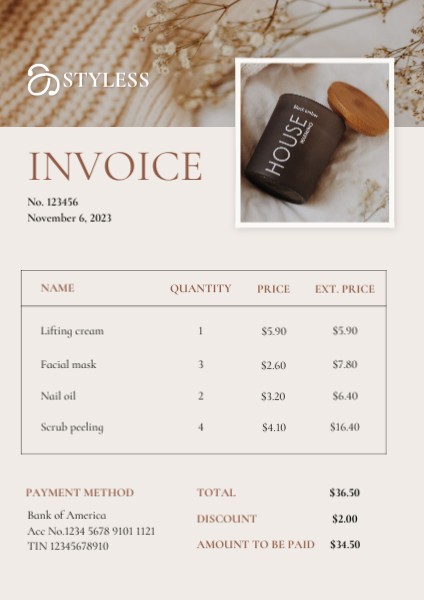
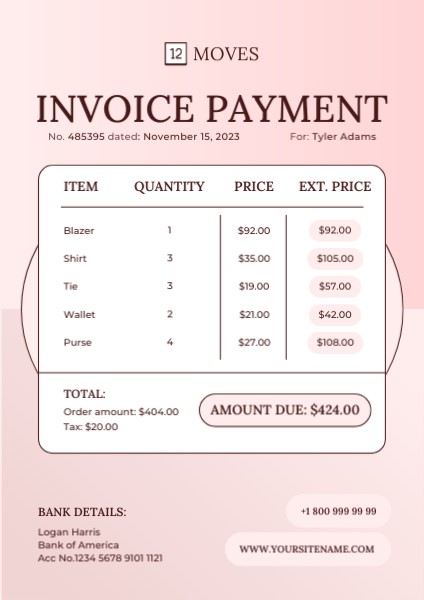
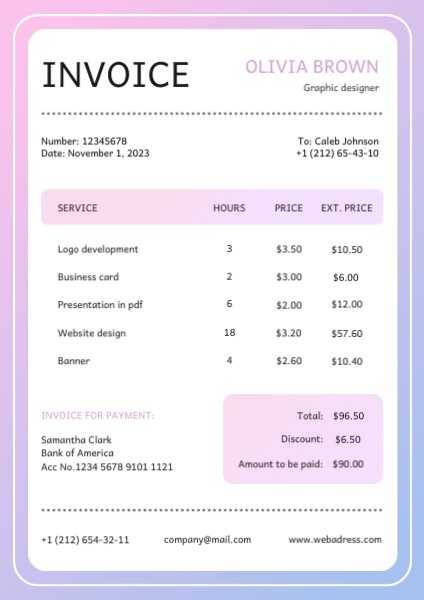
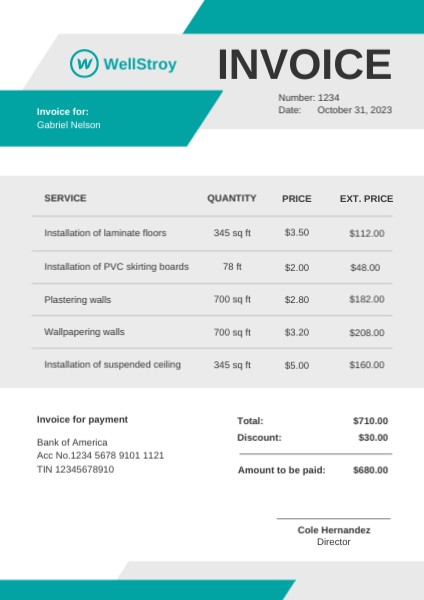
Choose from hundreds of PDF templates
Find templates for any topic in our extensive library





How to create PDF files with SUPA?
A step-by-step guide on creating PDF documents using SUPA software.
- 1
Sign up for SUPA and confirm your email
- 2
Click “Create” -> “Business” and select one of the templates
- 3
Edit the template to fit your needs, including editing text and images
- 4
Export your design as a PDF. Done! Now you can send your file via email or messaging apps. PDF files are also ideal for printing
FAQ
Can I create PDFs using the free subscription?
Yes, you can. You won’t have access to premium assets, but you can create designs using elements available with a free subscription. You can also export your designs in multiple formats.
I don't like any of the templates. Can I create my own PDF from scratch?
Yes. After clicking “Create”, you can choose to make your design from scratch. In this case, you’ll see a blank canvas where you can create freely.
Can I use designs made in SUPA for commercial purposes?
Yes, all templates and assets are cleared for commercial use.
Can I use my own font in this editor?
Yes, you can upload fonts from your computer and even share them with your team.
Recommendations on creating your PDF files
Use correct page size
Make sure the page size you set for your PDF matches your intended print format (A4, A5, Letter, etc.). This step is important as it will help you avoid cropping and/or distortions when printing the document.
Insert high-resolution images
Use high-resolution images to avoid blurring and distortion when scaling the document. Keep an eye on your file size as adding many high-resolution images can make your files significantly larger.
Include bleed
For documents requiring automated cutting during printing, make sure to allow bleed - extend the background and images by up to 0.5 inches.
Edit and spell-check
After completing your PDF, check for common issues such as misordered pages, incorrect colors, misplaced elements, or grammar and spelling mistakes.